The pharmacy signs up and sets itself up.
A guided path, step by step: every screen explains what it expects and why. The pharmacy moves at its own pace, stops whenever it wants, and picks up where it left off.
The path
Six steps, and nothing to install on site.
Every step ends with a confirmation on screen. What is optional can wait: nothing blocks the pharmacy.
Sign-up
The pharmacist creates an account, finds the pharmacy in the national register and completes its details.
The contract, signed online
The electronic signature happens right at the start, with no paperwork and no appointment. The Nexum team then approves the file.
Connecting the stock
The pharmacy picks its pharmacy management software, follows the installation steps, and the screen confirms when the connection is live.
◔ Rolling outThe payment account
Bank details and supporting documents, entered once, to receive payment for orders.
The team and roles
The owner invites members, gives each a role and decides what each one can do, on the web and on mobile.
◔ Rolling outThe voice assistant
Optional, and can be switched on later: line type, call forwarding, greeting scenario and hours, with a test before go-live.
◔ Rolling out
● available · ◔ rolling out. The menu and online catalogue step will come next (◐). Self-service path ◔ rolling out. Today, sign-up goes through the Sign up page and the Nexum team supports the go-live.
The stock connects in a few screens.
The pharmacy picks its management software from a list, follows the steps, and sees on screen when the connection is live.
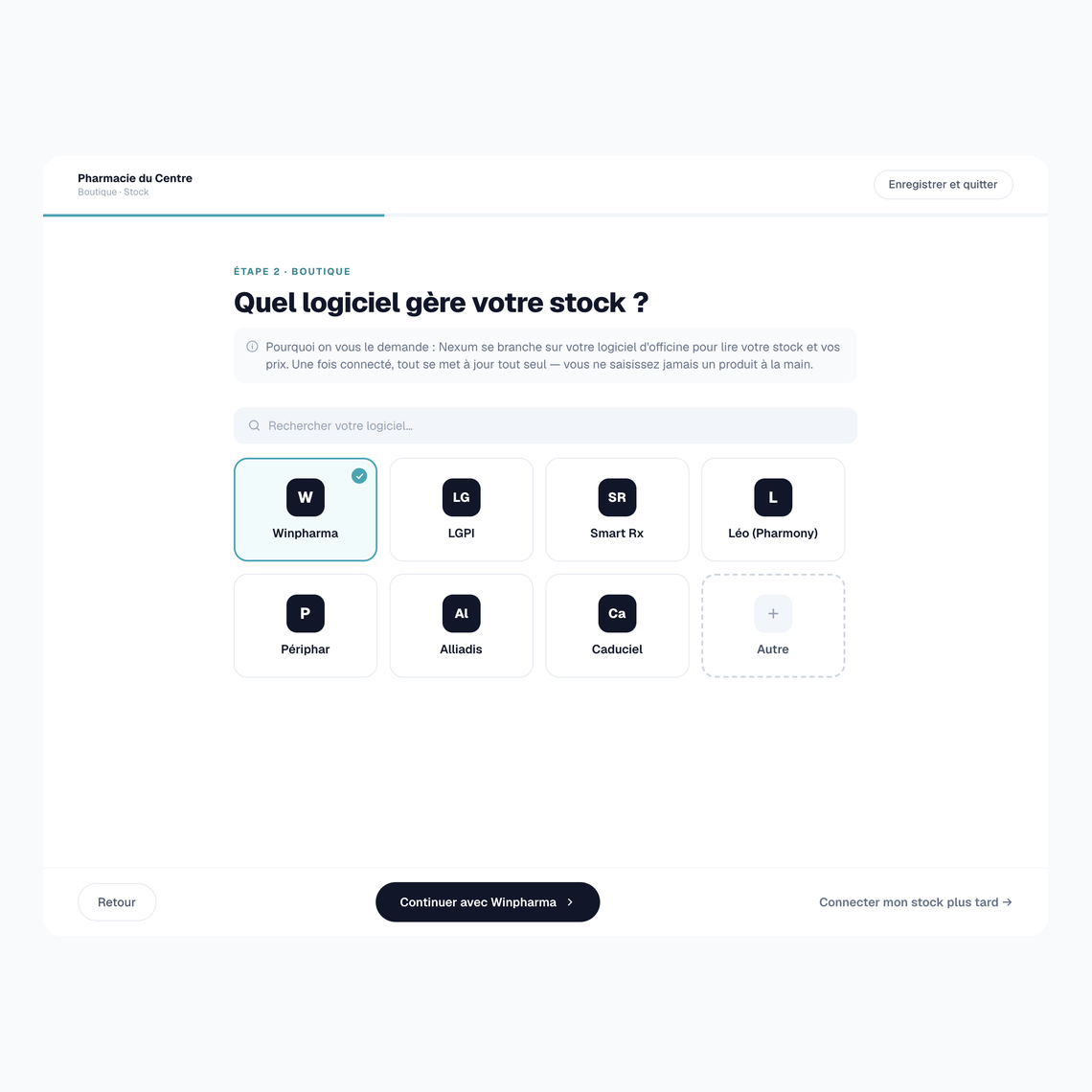
- Its own software, picked from the listThe software on the market is offered; search finds the rest.
- A guided procedure◔ Rolling outInstalling the connector is explained step by step, with no intervention on site.
- The connection, confirmed on screen◔ Rolling outThe pharmacy has nothing to guess: the screen says when the stock is connected and syncing.
- No more data entry by hand◔ Rolling outOnce connected, stock and prices update on their own.
A getting-started screen, rolling out. The list of compatible software is on the Integrations page.
The switchboard is set up without leaving the assistant.
The voice assistant is optional. The pharmacy can switch it on during setup or come back to it later.
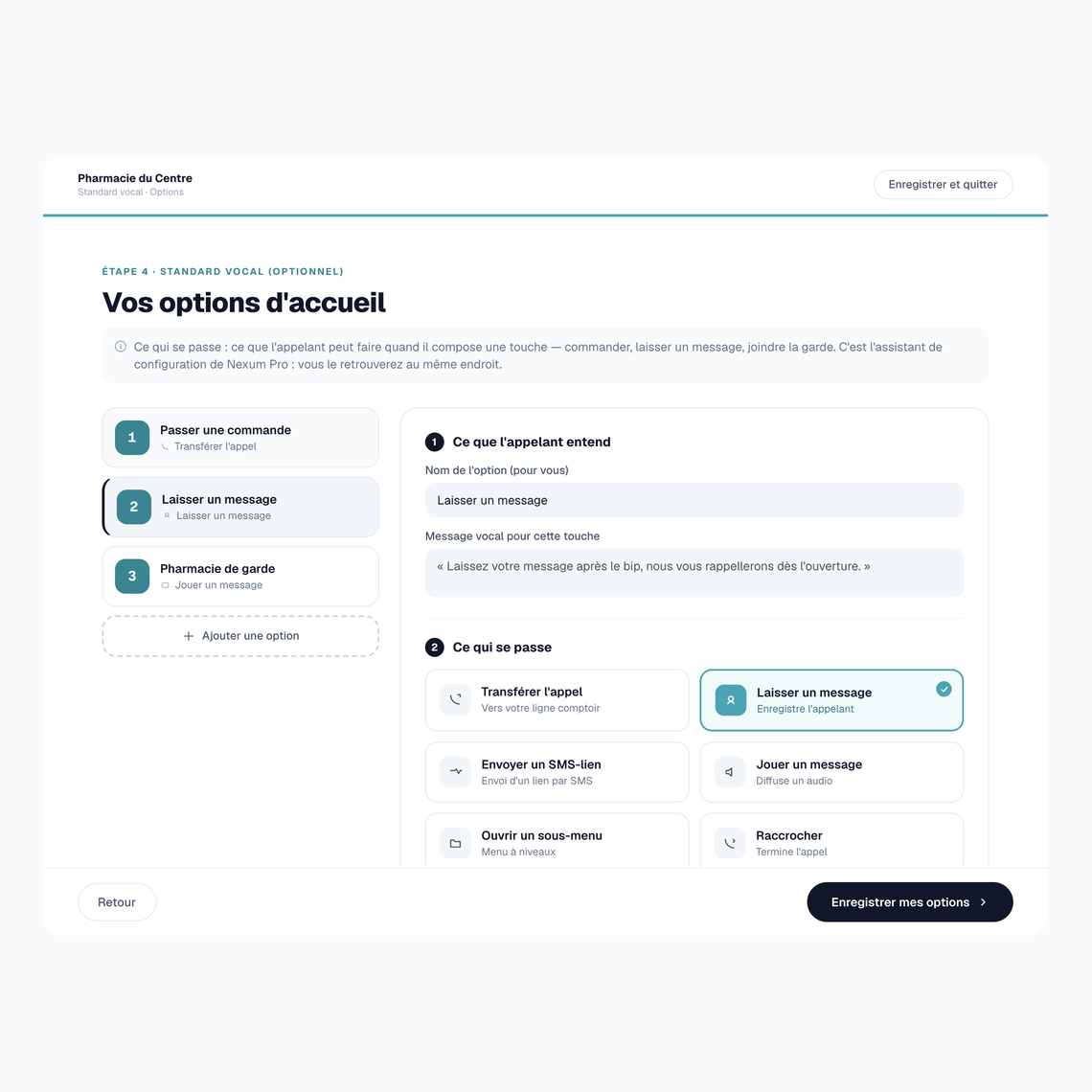
- A ready-made scenario◔ Rolling outThe pharmacy starts from a greeting template and adjusts it, rather than writing its menu from scratch.
- Its hours, its on-call daysThe switchboard knows when the pharmacy is open: the answer comes from the opening-hours grid.
- Call forwarding, tested beforehand◔ Rolling outA test checks call forwarding before go-live: the first real call is not the trial run.
- Switched on or off whenever it wants◔ Rolling outThe switchboard is started and stopped from Nexum Pro, without going through support.
The full detail of the switchboard features is on the Standard vocal page.
Before starting
What to have to hand.
Nothing unusual: the pharmacy’s details and the usual access. Having them to hand avoids interruptions.
The pharmacy
- The pharmacy’s registered name and identifier
- The SIREN number and tax details
- The contact details of the owner, who signs the contract
- Opening hours and on-call days
Access and team
- The name of the pharmacy management software and access to the machine it runs on
- The pharmacy’s bank details and an ID document for the legal representative
- The team members to invite, and each one’s role
- The type of phone line, if the voice assistant is switched on
The services switched on are chosen during the path and can be changed later from Nexum Pro.
If needed
On its own, but never alone.
The path is made to be followed without help. When a question comes up, the answer is a click away.
Video tutorials
Every step links to the tutorial that shows it. They stay available from Nexum Pro once setup is done.
See the tutorialsTeam training
A hands-on session with the pharmacy team, so every member knows what they have to do.
See pricingSupport, at every step
A callback can be requested from the assistant, without leaving the current screen.
Contact support
Start getting set up.
The pharmacy signs up, then follows the path at its own pace. The Nexum team approves the file and stays reachable.